Bring in the PDF
Open a document in the viewer or use the browser plugin while you work.

Your documents, ready to answer
ChattyPDF turns long documents into an interactive workspace. Ask precise questions, jump to the supporting page, and keep the source in view.
Practical workflows for research, extraction, and working with AI-assisted content.
ChattyPDF helps professionals, researchers, and educators locate the passage that matters and understand it in context.
Find specific facts, clauses, methods, or conclusions without manually scanning every page.
Give unstructured documents a clickable outline, then move directly to the relevant section.
Follow important terms back to their definitions instead of losing your place in dense material.
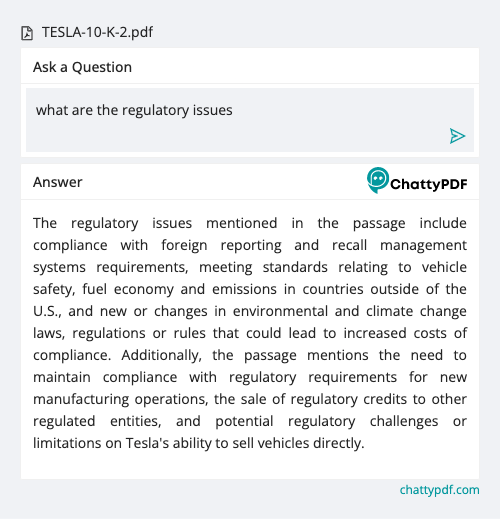
Good PDF work starts with a precise question and ends with a page you can verify.
The report identifies response time, evidence quality, and clear ownership as the three strongest predictors of a successful review process.
Executive summary - page 4Open a document in the viewer or use the browser plugin while you work.
Ask for a fact, definition, comparison, table, or section and refine the query as needed.
Use the answer as a route into the source, then inspect the surrounding evidence.
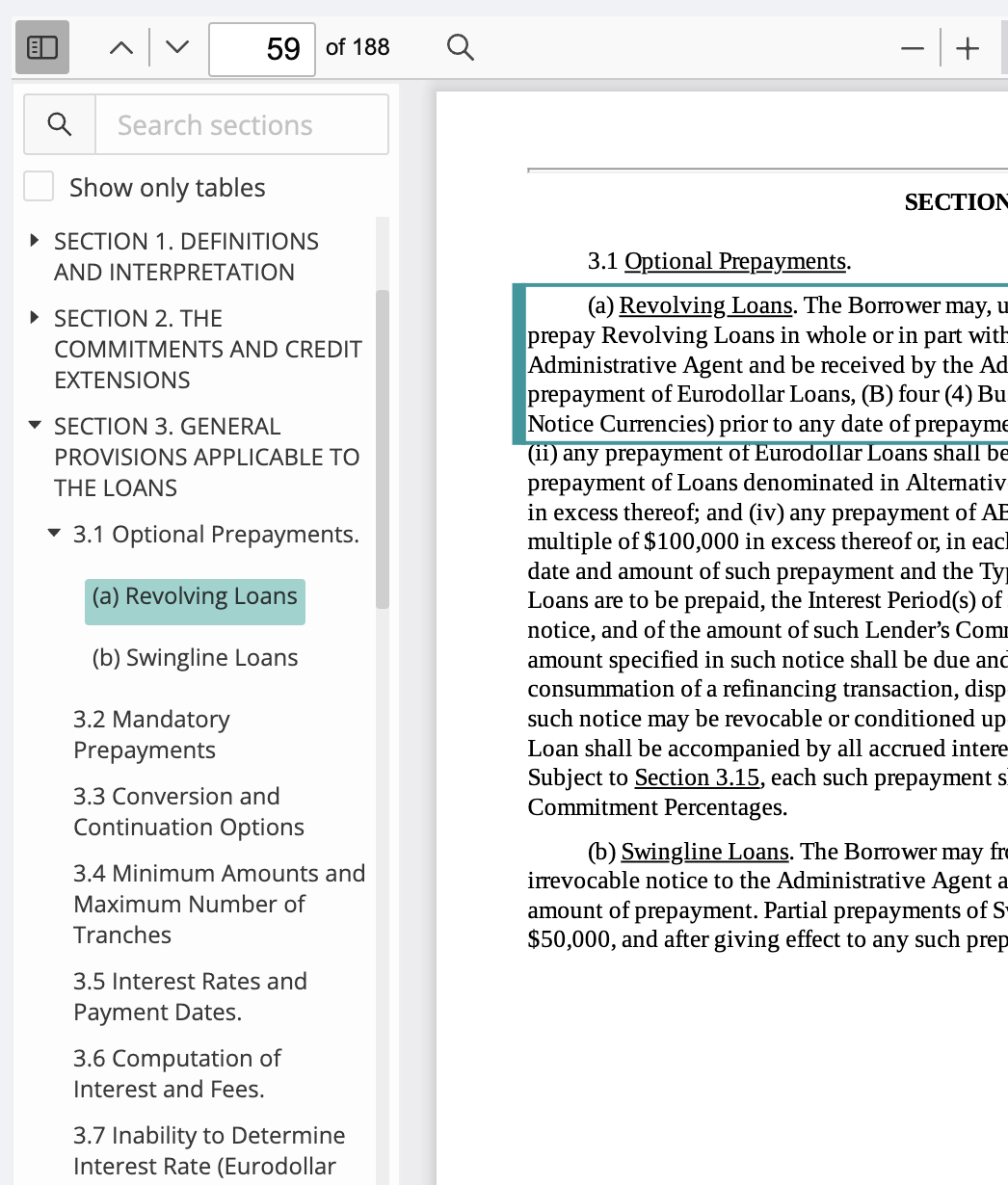
Navigate PDFs that arrive without useful bookmarks.
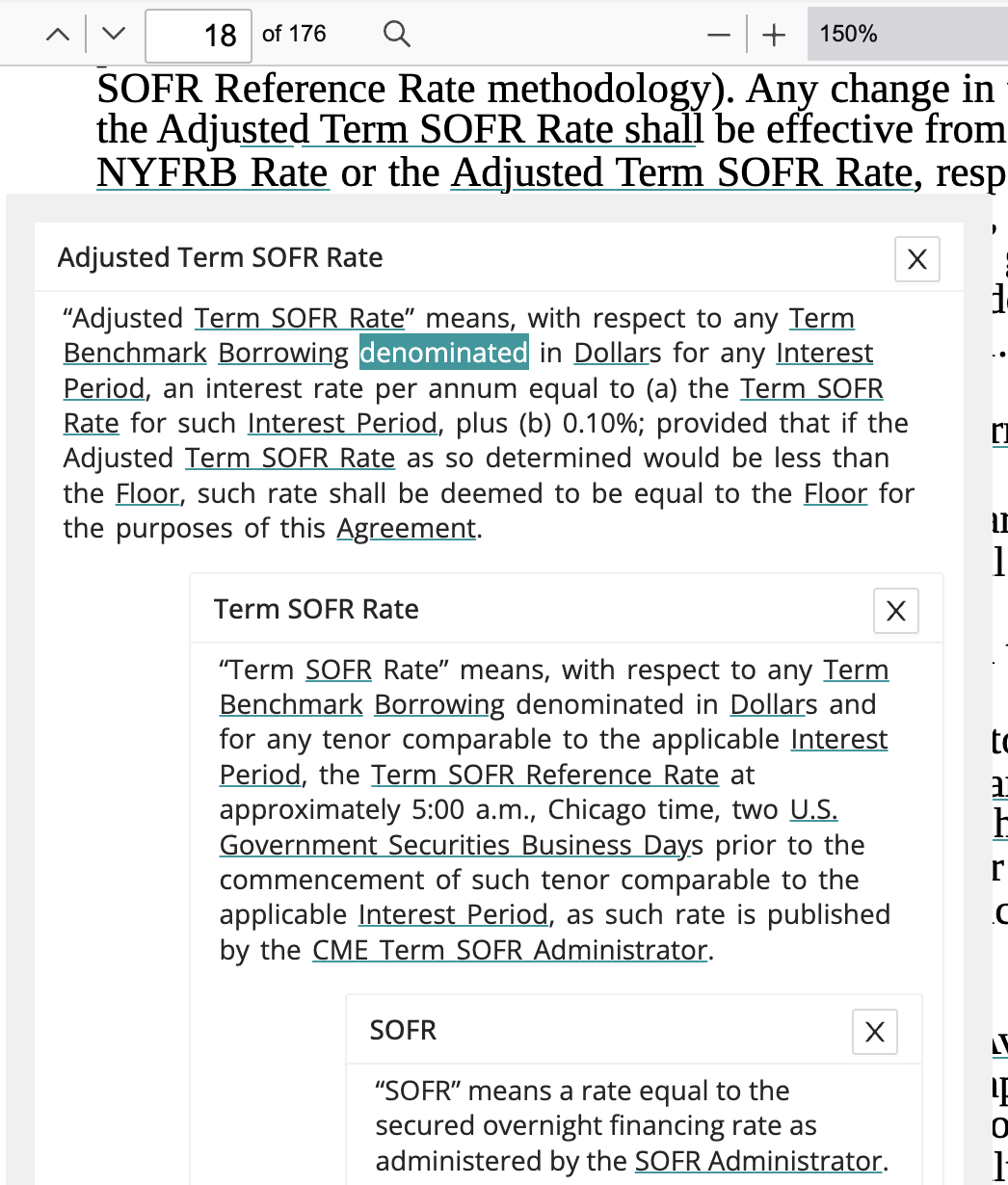
Move between a term and the definition that controls its meaning.
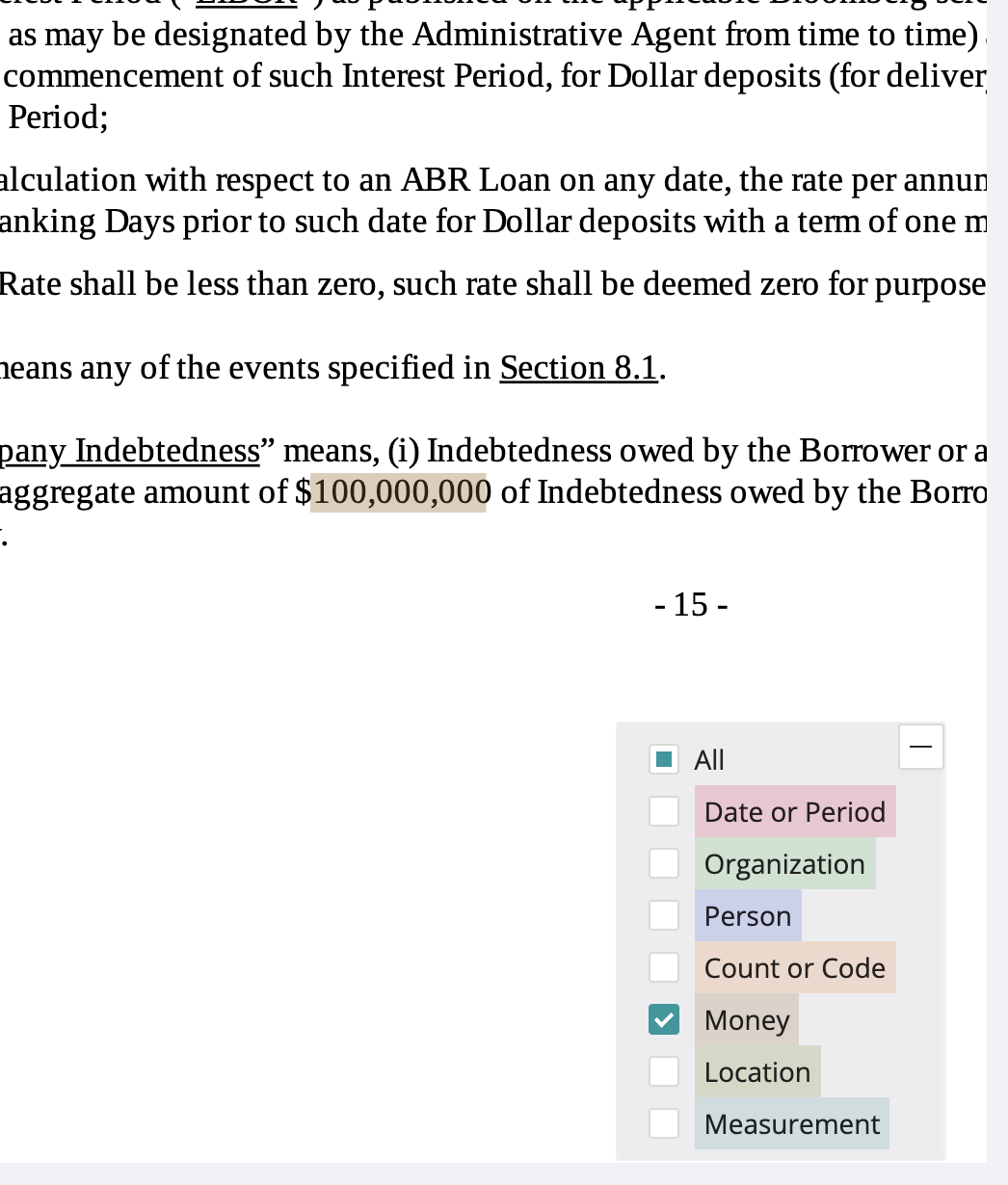
Keep attention on the passage that supports the answer.
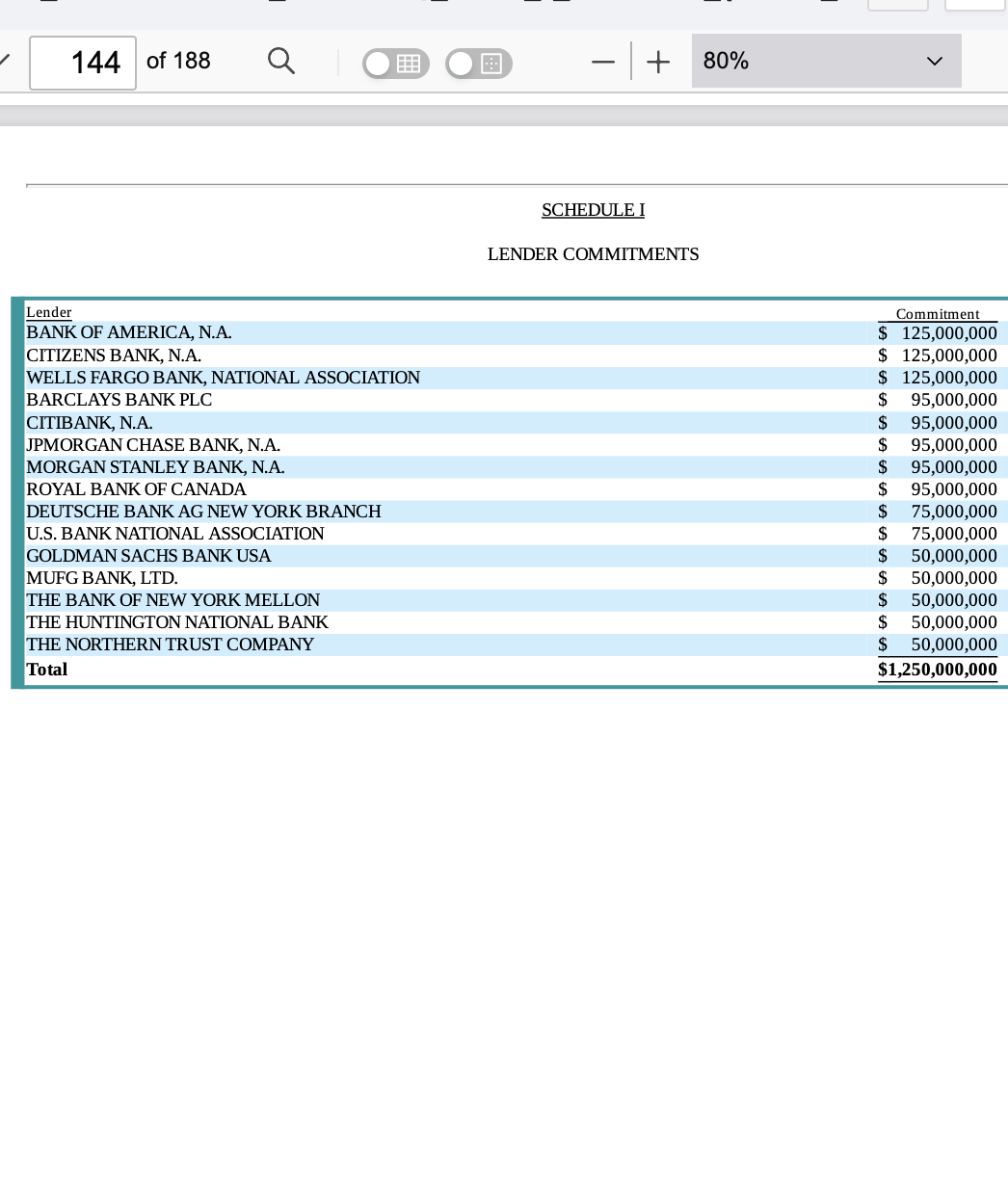
Move structured information into the next stage of analysis.
Reports, research papers, textbooks, contracts, manuals, and other text-rich documents are natural fits. Scanned files may need reliable text recognition first.
No. Use each answer to find the relevant page and inspect the surrounding passage, table, or footnote before making a decision.
Yes. It can help locate and extract tables for download, but labels, units, and footnotes should still be checked against the source page.
The original ChattyPDF workflow included a Chrome plugin so documents could be opened and questioned from the browser.
ChattyPDF was created to make dense PDFs easier to navigate for professionals, researchers, and educators. The product combines conversational questions with document-aware navigation.
ChattyPDF is part of NLMatics, whose work focuses on intelligent document processing and natural-language tools.